Hello and welcome to this article.
My name is Anton Saburov, and I’m excited to guide you through how I personally use ChatGPT and AI tools in my daily work and business.
About Me
I’m a serial entrepreneur and a marketer with more than 16 years of experience.
At the moment, I’m building two main products:
- InfluBalance.com – an AI agent for B2B contacts, influencers, and partnerships.
This platform uses AI to analyze influencers, creators, audiences, and potential partners, helping you find the most relevant opportunities with smart filtering and deep insights. - Kone.VC – an AI tool for creating applications inside large language models (LLMs).
We work deeply with LLMs and AI automation to build practical tools for founders, creators, and teams.
Most of my daily work is powered by ChatGPT, and this course is based entirely on real usage, not theory.
How I Use ChatGPT Personally
I use a ChatGPT Plus account ($20/month)—the same version many of you use.
Nothing special. The difference is how you configure and use it.
Step 1: Custom Instructions (Very Important)
The first thing I recommend is setting up Custom Instructions.
In ChatGPT settings → Personalization, you can tell ChatGPT:
- How you want it to talk to you
- What tone you prefer
- What you don’t want (for example: clichés, AI-style phrases, bullet points, or formatting)
I personally treat ChatGPT like a real human assistant, not a robot.
After setting this up, ChatGPT:
- Writes more naturally
- Understands your preferences
- Becomes much more useful long-term
This is the foundation of smart AI usage.
How to Create Better Custom Instructions
You don’t need to write them alone.
Just open a new chat and say something like:
“Please write custom instructions for ChatGPT.
These points are important to me…”
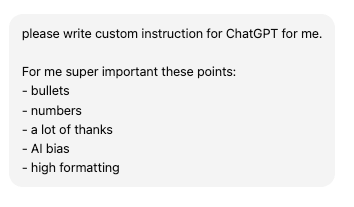
Then explain what matters to you.
ChatGPT will generate a clear, ready-to-use version that you can copy directly into your settings.
Voice Dictation: A Huge Productivity Boost
I highly recommend dictation instead of typing.

Why?
- You share more context
- Your thoughts are clearer
- AI understands you better
I often dictate 1–5 minutes of voice input, especially for complex tasks.
This works incredibly well on both desktop and mobile.
Projects: The Most Powerful Feature
Projects are one of the best features in ChatGPT.
With projects, you can:
- Create separate workspaces
- Add custom instructions per project
- Upload PDFs, books, guides, and files
- Keep memory isolated (nothing leaks into other chats)
For example, I have projects for:
- YouTube optimization
- Influencer research
- English practice
- Startup development
- Transcript analysis
Each project has its own rules, data, and workflow.
Pro Tip
Projects remember context only inside that project, which makes them perfect for serious work.
Group Chats: Use ChatGPT Like a Team Member
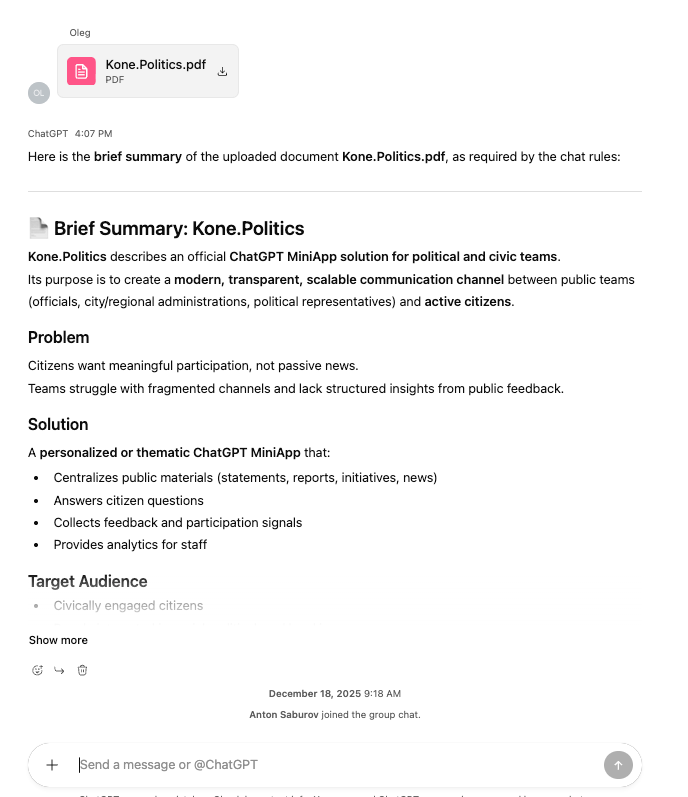
Group chats are great for:
- Teams
- Clients
- Family discussions
- Ongoing collaborations
You can:
- Set rules
- Upload files (short-term)
- Use web search
- Treat ChatGPT like a shared AI coworker
For long-term files, I recommend using Google Drive links, since uploads don’t stay forever.
GitHub Resources & Advanced Instructions
We also maintain a GitHub repository where we share:
- Custom instructions
- Project templates
- Group chat setups
- Mini AI workflows
There are basic instructions for beginners and senior-level master instructions for advanced users.
You can:
- Copy the raw instruction file
- Paste it into ChatGPT
- Let ChatGPT help you refine it step by step
This is how you create high-quality, professional AI workflows.
Developer Mode & Mini Apps
For advanced features, enable Developer Mode in settings.
This unlocks:
- Mini apps
- Tool calling
- MCP servers
I personally use our own app called Business Assistant, which helps with:
- Pitch decks
- Startup research
- Business strategy
- Fundraising knowledge (YC videos, expert content, etc.)
All information is pulled from trusted creators and thousands of high-quality videos.
Deep Research: Use It Wisely
Deep Research is extremely powerful—but limited.
I recommend:
- Using it once or twice per day
- Only for important, complex topics
- Audience research
- Market analysis
- Product validation
- Economic or data-heavy tasks
It can take 5–30 minutes, but the output is very deep and valuable.
Choosing the Right Model
- Auto mode → best for 90% of tasks
- Instant mode → fast, simple answers
- Thinking mode → complex logic, development, or deep instruction building
Use Thinking mode only when needed—it’s powerful but slower.
Reminders & Scheduled Tasks
ChatGPT can also:
- Send daily emails
- Create scheduled reminders
- Monitor topics and send updates
For example:
- Daily news summaries
- Market updates
- Research reminders at a specific time
You can manage everything in Settings → Tasks.
Final Thoughts
In this lesson, I shared 5–6 powerful ways to use ChatGPT smarter:
- Custom instructions
- Voice dictation
- Projects
- Group chats
- Deep research
- Reminders and automation
These tools can dramatically improve your personal productivity and business workflows.
Thank you for watching.
Please leave feedback, give a thumbs up, and I’ll see you in the next video.
My name is Anton Saburov—see you soon.