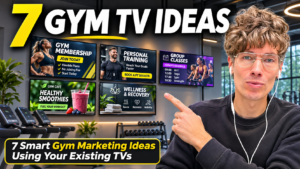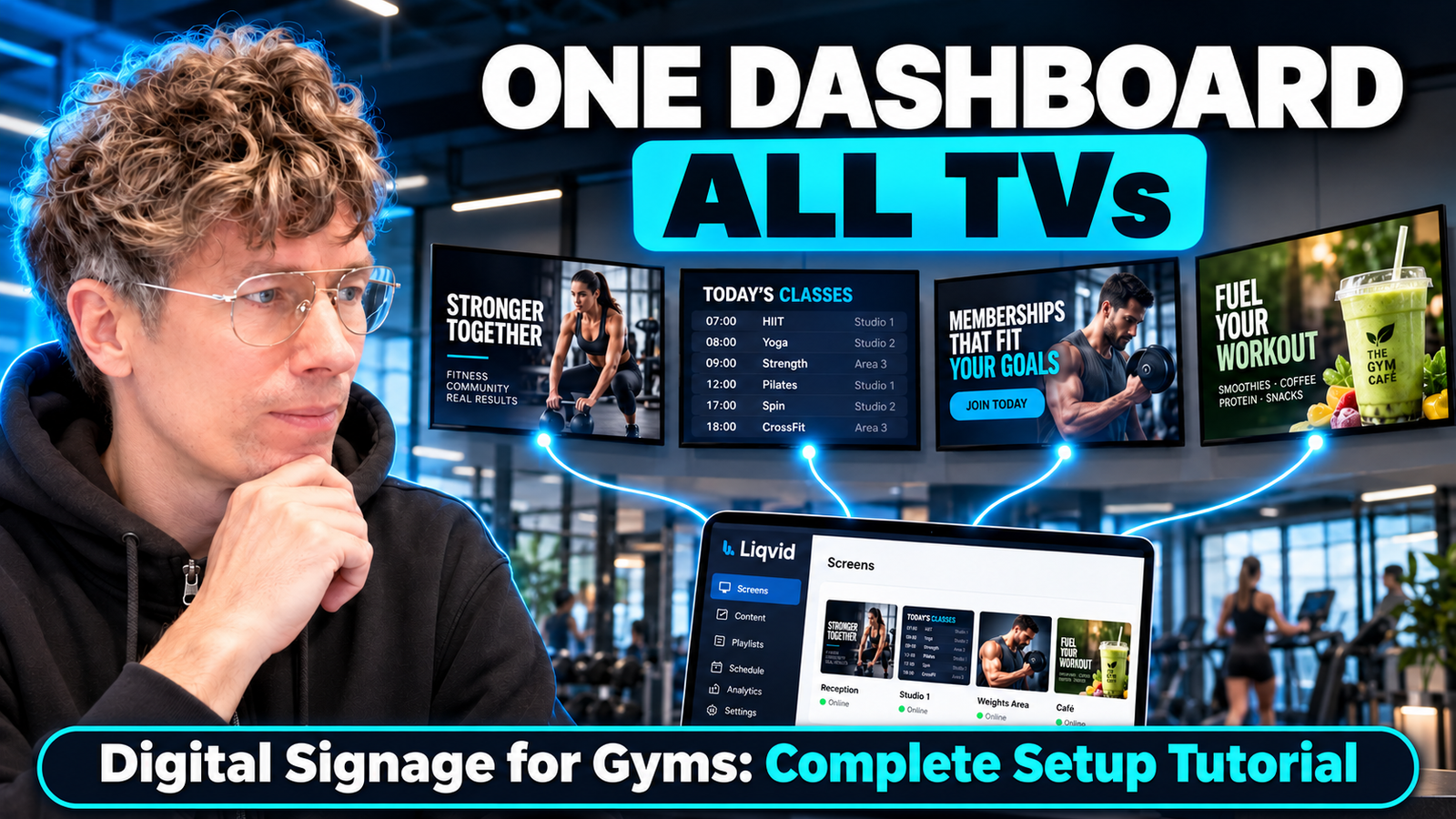
Digital signage for gyms turns existing TVs into centrally managed screens for class schedules, member information, entertainment and promotional content. Instead of walking from TV to TV with a USB stick, a gym team can connect supported displays to software such as Liqvid, upload media, create playlists, and schedule what members see in different zones.
Watch the full practical walkthrough: Digital Signage for Gyms: Complete Setup Tutorial with Liqvid. For device compatibility and current plans, use the official Liqvid fitness page.
What is digital signage for a gym?
A gym digital signage system is a way to publish and manage content displayed on TVs throughout a fitness club. Unlike a stand-alone TV channel or a video playing from a flash drive, the content can be selected remotely, grouped into playlists and scheduled by screen or location. It is useful for class schedules, trainer information, membership offers, café menus, gym announcements and fitness videos.
Step 1: Check the screens and media players you already own
Start with an inventory of your displays, their operating systems, app stores, placement and network connectivity. A supported smart TV may run the Liqvid player directly. If the display has no compatible app, a supported Android media player or Amazon Fire TV device may provide playback. Do not assume every model is compatible: check the device and supported installation method before buying new equipment. The Liqvid screens help center documents the screen-related workflow.
Step 2: Pair the first gym TV with Liqvid
Open the compatible player on the TV and use the pairing code in the Liqvid account to connect it. Name your display for its physical job—such as Reception TV, Cardio Zone or Cycling Studio—rather than a generic device number. Confirm that the screen is online and can show published content. Begin with one working screen before scaling to many locations.
Step 3: Upload media and build a useful content library
Prepare short, easily readable promotional graphics and videos. Common categories include today’s classes, trainer introductions, personal-training packages, upcoming events, membership upgrades and food or drink offers. Liqvid supports organizing media into folders; the video also demonstrates editing a screen’s content and publishing changes. Create assets with mobile and TV readability in mind: large typography, strong contrast, and one message per visual.
Step 4: Create playlists and schedule broadcasts
A playlist specifies what rotates on a screen; scheduling controls when a playlist appears. In a gym, that could mean early-morning class reminders, midday café offers and evening announcements. A reception screen often needs short, immediately understandable messages, whereas members on the workout floor can encounter a longer mix of informational and entertaining content. Treat loop length as a hypothesis to test against actual member attention, not a universal fixed number.
Step 5: Manage screens by gym zone and location
| Gym zone | What to show |
|---|---|
| Reception | Whole-club schedule, memberships, events and PT offers |
| Workout floor | Personal-training promotions, class discovery and motivational content |
| Studio entrance | Current and next classes, instructors and studio-specific timetable |
| Café | Menu, smoothies, meals and relevant promotions |
| Lounge | Club app downloads, events and challenges |
Group screens so staff can publish the correct content to a specific location or across a chain. Liqvid’s fitness page also describes screen monitoring, playback status and remote screenshots, along with roles and permissions for distributed teams.
What does Liqvid cost?
The current fitness landing page describes a Free plan and paid Premium and Enterprise plans, including differences in storage, branding, widgets and support. Its current wording describes free usage on one screen and pricing per screen; because plan terms can change—and older videos may describe them differently—verify the live pricing before rollout rather than relying on a historical quote.
When is digital signage worth it?
If your only goal is to watch TV channels or loop one unchanged video on a single display, a dedicated signage platform may be unnecessary. But if schedules change often, several employees update promotions, or multiple locations need consistent messaging, centralized management solves a real operational problem.
Frequently asked questions
Can I turn an existing gym TV into digital signage?
Often yes. First check whether it supports a compatible signage app. If not, a supported media player or streaming device may connect the TV to the content-management system.
Can I manage multiple gym screens remotely?
Yes. Liqvid supports assigning content to individual screens and organizing displays by zones and locations, subject to the selected plan and account permissions.
What should I put on gym TV screens?
Start with information members actually need: current classes, upcoming events, instructor introductions and relevant offers. Then tailor the content to the zone instead of running the same playlist everywhere.
Can digital signage show live class schedules?
Yes, with a supported schedule-widget data source. See my detailed guide: How to Display Live Gym Class Schedules on TV.
Related Liqvid guides and social discussions
After setup, explore 7 Gym Marketing Ideas Using Existing TVs, then Live Gym Schedule Automation. For the original tutorial discussion, see my X post and Threads post. Product details and customer materials: liqvid.io/fitness.
By Anton Saburov · November 18, 2026 · Based on my Liqvid walkthrough and the official product material. Compatibility and pricing should be verified for your device and plan.